Custom Bluesky Handles with Hono and Cloudflare Workers
I recently changed my Bluesky handle from @simmervigor.bsky.social to
@simmervig.org. I did this using the HTTP validation method, which relies on
providing custom responses to /.well-known/atproto-did. The blog explains how
I used Hono to set up a simple request router and run it in
Cloudflare Workers. You too can use this method to easily and quickly set up a
bunch of handles under a unified organisation e.g., @alice.example.org and
@bob.example.org.
When signing up for Bluesky, you can pick data hosting provider as either “Bluesky Social” or self-hosted (requiring you to self-host a Personal Data Server).
The option to host on Bluesky is convenient for many. When choosing this, you’re
allowed to pick a handle but it’s suffix is forced to end with bsky.social.
Prior to this blog, I had registered @simmervigor.bsky.social and it was good
enough.
Recently I’d seen a few people switching to a nice handle that uses some domain that they own. Bluesky call this “verification” but for the purposes of this post I’ll just call it a custom handle. The official guide is prettty clear and succint. What’s also nice is that it doesn’t bugger up your account - everything you used to have remains there. So its pretty risk free.
While I own the domain this website is running from, and could have changed my
handle to @lucaspardue.com, there’s something I sort of like about keeping the
SimmerVigor moniker around. So I went and registered simmervig.org - think of
the extra g as a regex modifier, G-man, or whatever else your imagination
comes up with.
In essence, what the Bluesky custom handle verification process requires is for you to make your AT Protocol DID available from some resource under the domain authority. Bluesky then fetch this DID to verify you own it. For the nerdy, DID stands for Decentralized Identifier and its a W3C specification.
Bluesky offer two methods for doing this validation fetch: a DNS query, or an HTTP fetch. To start either, visit Settings > Account > Handle. Full official instructions here. And note carefully the note!
Note: if you change your default Bluesky username (with the .bsky.social suffix) to a website URL, your old username will be available for someone else to use. However, any tags or mentions with your old handle will still point to your account. If you’d like to keep your old .bsky.social username, we recommend creating a second account to hold that username.
DNS Validation
This is the default. Its fine, especially if you understand how to configure
DNS. Just add a TXT record under _atproto containing your DID value formatted as
did=did:plc:<your DID value>
However, it can get tricky when you want to do things with have multiple handles
using subdomains e.g., @alice.example.org and @bob.example.org. So their recommendation is to use the HTTP method.
HTTP Validation
The way to start this is to again visit Settings > Account > Handle but this time select the oddly named “No DNS Panel” option.
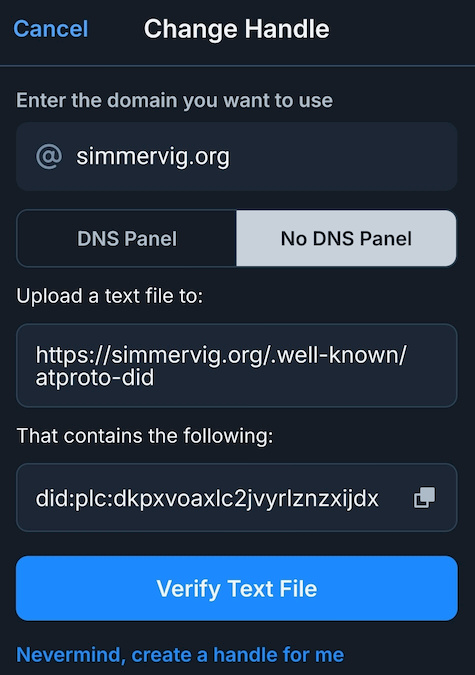
In my example, I’ve entered simmervig.org as my new handle. The other details on the page update to match the handle, which makes it easy to follow.
The Bluesky verification process will make an HTTP request to
https://simmervig.org/.well-known/atproto-did. My server then needs to respond
to that with a 200 OK, with Content-Type: text/plain and the response payload
did:plc:dkpxvoaxlc2jvyrlznzxijd, which is my actual DID value.
For some reason, the official instructions explain this very weirdly and I think overcomplicate it. It gives a snippet about how their side of things works, which seems a totaly distraction. At first, in a rush, I read this as Bluesky POST’ing my DID to me and my server needing to return a 200 OK if it matched. That would be annoying if true.
Handling /.well-known Easily with Hono and Cloudflare Workers
In my previous
blog,
I discussed how I used Workers Routes to run multiple different Web Applications
on lucaspardue.com. I started using Workers back in 2018 and its come a long way
since then. I’ve been hearing a lot of people talk about
Hono and recently it’s creator, Yusuke Wada,
posted its
background
story.
It looked a lot easier to manage routes using Hono than my legacy approach but I
was hesitant to go and touch the old stuff. The new domain simmervig.org
offered a new opportunity.
I followed the instructions at https://hono.dev/docs/getting-started/cloudflare-workers and did roughly the following steps:
- Initialize with
npm create hono@latest simmervigor-worker - Edit
index.tsto handle the/.well-knownrequest - Edit
index.tsto redirect all other traffic tohttps://lucaspardue.com - Edit
wrangler.tomlto run the worker on any path in thesimmervig.orgdomain - Deploy with
npm run deploy - Test with
curl https://simervig.orf/.well-known/atproto-didand check the response matches the value Bluesky would expect - Switch back to Bluesky and run the verification via the “Verify Text File” button.
Here’s how my index.ts ended up looking:
import { Hono } from 'hono'

const app = new Hono()

app.all('/.well-known/atproto-did', (c) => {
  return c.text('did:plc:dkpxvoaxlc2jvyrlznzxijdx')
})

app.all('/*', (c) => {
  return c.redirect('https://lucaspardue.com', 301)
})

export default app
And my wrangler.toml:
name = "simmervigor-worker"
main = "src/index.ts"
compatibility_date = "2024-11-30"

routes = [{pattern = "simmervig.org/*", zone_name = "simmervig.org"}]
The full source code is up on GitHub.
It should be fairly easy to adapt these to any needs, such as running the worker on other domains or adding subdomain matching so you can support multiple users in one file. See https://hono.dev/docs/api/routing#routing-with-host-header-value or https://hono.dev/docs/api/request#url for ways to possibly do this.
Beware Your Old Handle getting Snaffled
As I highlighted earlier, the official docs note “your old username will be available for someone else to use”. This creates a risk of impersonation. So once the verification of the new handle goes through, might want to register the old one again to avoid it getting snaffled.